The Traefik web proxy
Despite Traefik’s special role in routing requests to other apps, it is itself just installed as a Co-op Cloud app, managed by abra.
Creating the app
Let’s add the new app using:
abra app new traefik --server YOUR_HOSTNAME.local --domain traefik-YOUR_HOSTNAME.local
(Don’t forget to replace YOUR_HOSTNAME with the hostname of your pi.)
Configuring the app
With the app added, you can now load it’s config file using:
abra app config traefik-YOUR_HOSTNAME.local
(Remember that you can use autocomplete on the name, try typing traefik then hitting <tab>)
This should open the config file in your default text editor.
Enabling local certificates.
Find the section in the file headed with Manual wildcard certificate insertion
In that section, you need to “un-comment” the following lines by removing the # symbol at the start of each line.
#WILDCARDS_ENABLED=1
#SECRET_WILDCARD_CERT_VERSION=v1
#SECRET_WILDCARD_KEY_VERSION=v1
#COMPOSE_FILE="$COMPOSE_FILE:compose.wildcard.yml"
Adding the certificates to the docker secrets
In the last step we created a pair of certificate files for our server. This is where we add them.
Run the following from your dev computer:
abra app secret insert traefik-YOUR_HOSTNAME.local ssl_cert v1 pi_local.crt -f
abra app secret insert traefik-YOUR_HOSTNAME.local ssl_key v1 pi_local.key -f
Deploying the app
Deploy this change to your Raspberry Pi by running:
abra app deploy traefik-YOUR_HOSTNAME.local --no-domain-checks
Browsing to the Traefik dashboard
If everything went well, we should have Traefik installed. We can check if it worked by going to the following URL in our browser, https://traefik-YOUR_HOSTNAME.local.
But wait, what’s this??
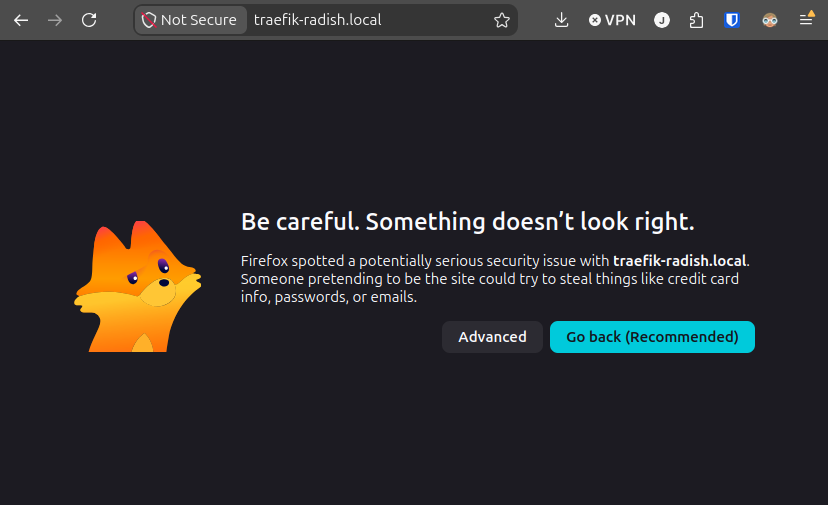
We’ve hit the problem that our self-signed certificate isn’t a real certificate trusted by some internet authority, and our browser is here to protect us. When we use our server on the internet, we’re going to use a real certificate, but for now anyone using this site on your local network is going to have to proceed here despite the scary warning of risk. To do so, hit the “Advanced” button.
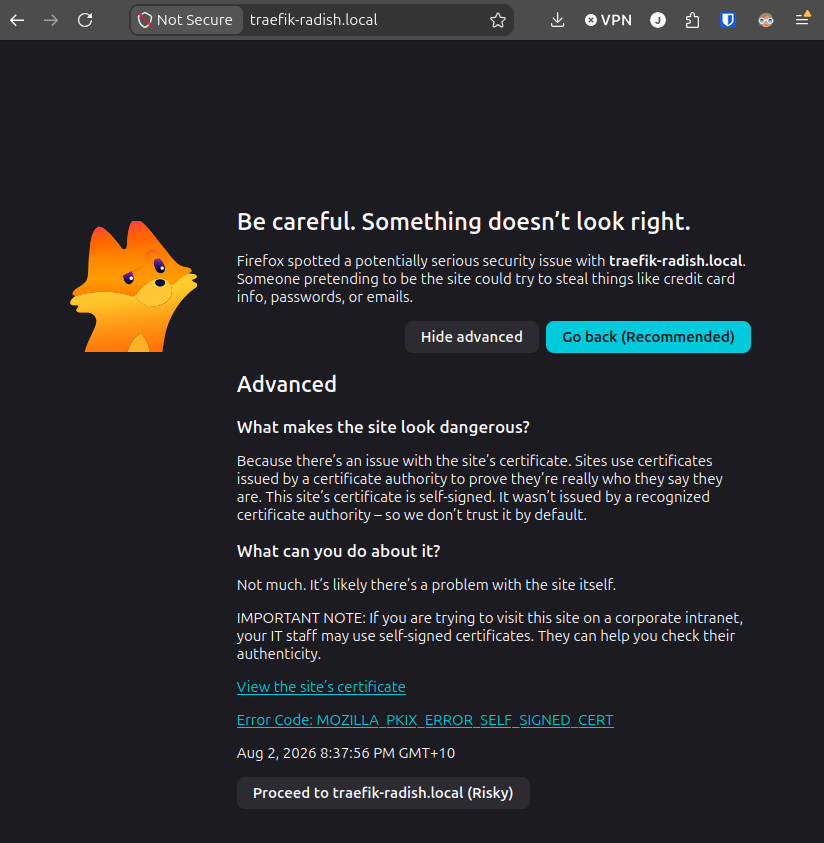
With the advanced section expanded, hit the button that says “Proceed to traefik.YOUR_HOSTNAME.local (Risky)”.
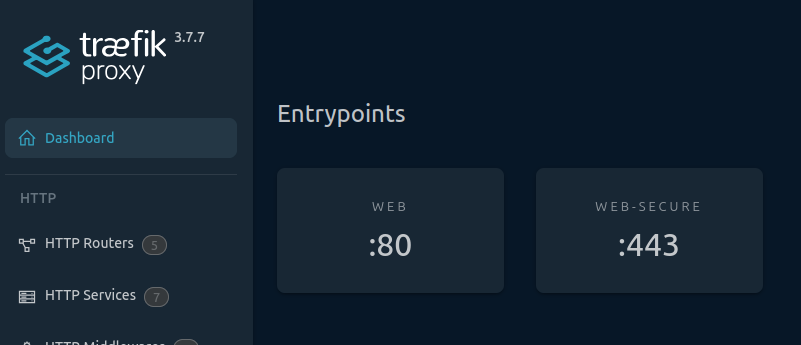
And with that, you should be in. If it worked, ou should now be looking at the Traefik dashboard. It’s a good tool for seeing how things work. We might disable it later for security reasons, but for now let’s keep it there to explore.
Checklist
You should have completed:
- We have created the traefik abra app definition
- We have changed the traefik app config to enable self-signed certificates
- We have added the self-signed certificates to abra secrets
- We have deployed traefik to our Raspberry Pi and can access it in the browser